

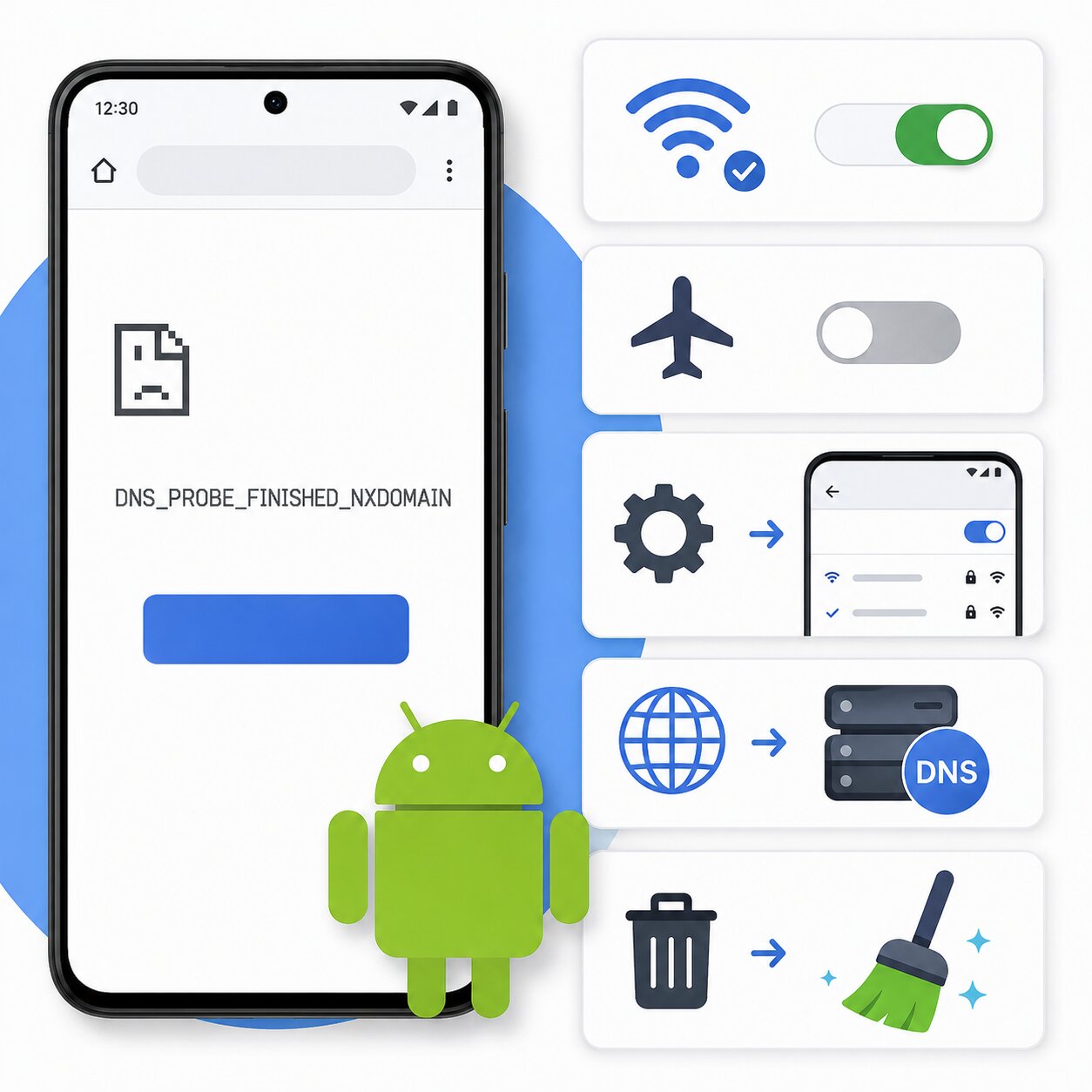
The DNS_PROBE_FINISHED_NXDOMAIN error is one of the most common internet problems faced by Android users. This issue usually appears in the Chrome browser when a website fails to load. Instead of opening the webpage, the browser displays an error message saying the site cannot be reached.
For many users, this error can be confusing because it looks technical. However, the problem is often simple and can be fixed within a few minutes. Understanding the cause of this error is the first step toward solving it.
What Does DNS_PROBE_FINISHED_NXDOMAIN Mean?
The word “DNS” stands for Domain Name System. DNS works like an online phonebook that converts website names into IP addresses. When your Android device cannot find the correct IP address for a website, the browser shows the DNS_PROBE_FINISHED_NXDOMAIN message.
In simple words, your phone cannot locate the website on the internet.
Common Reasons Behind This Error
Several issues can trigger this problem on Android devices.
The most common causes include:
- Weak or unstable internet connection
- Incorrect DNS settings
- Browser cache problems
- Website domain issues
- Expired domain name
- VPN or proxy conflicts
- Private DNS misconfiguration
- Temporary Android network glitches
Sometimes the issue is from the website itself, while in other cases the problem is with your device or internet settings.
Signs of DNS_PROBE_FINISHED_NXDOMAIN Error
You may notice the following symptoms:
- Websites fail to load
- Chrome displays “This site can’t be reached”
- Only specific websites stop working
- Internet works on some apps but not in the browser
- Wi-Fi connected but webpages do not open
These signs usually indicate a DNS-related issue.
Easy Ways to Fix DNS_PROBE_FINISHED_NXDOMAIN on Android
Below are some effective methods you can try to solve the problem.
1. Restart Your Android Phone
A quick restart can refresh network settings and remove temporary bugs.
Steps:
- Press and hold the power button
- Tap “Restart”
- Wait for the device to reboot
After restarting, open Chrome again and test the website.
2. Check Your Internet Connection
Poor internet is one of the biggest reasons behind DNS errors.
Try these solutions:
- Turn Wi-Fi OFF and ON
- Switch from Wi-Fi to mobile data
- Restart your router
- Enable Airplane Mode for 10 seconds
If the website opens on another network, your internet connection may be causing the issue.
3. Clear Chrome Browser Cache
Corrupted cache files can stop websites from loading properly.
Follow these steps:
- Open Chrome
- Tap the three-dot menu
- Go to Settings
- Select Privacy and Security
- Tap “Clear Browsing Data”
Choose:
- Cached images and files
- Cookies and site data
Then clear the data and restart Chrome.
4. Disable Private DNS
Modern Android phones include a Private DNS feature. Incorrect settings here can trigger the NXDOMAIN error.
To disable Private DNS:
- Open Settings
- Go to Network & Internet
- Tap Private DNS
- Select “Automatic” or “Off”
Now test the website again.
5. Use Google DNS on Android
Changing your DNS server can improve browsing performance and fix DNS problems.
Recommended DNS providers:
- Google DNS: dns.google
- Cloudflare DNS: 1dot1dot1dot1.cloudflare-dns.com
These DNS services are fast, secure, and reliable.
6. Reset Network Settings
Network settings may become corrupted after software updates or app installations.
Reset process:
- Open Settings
- Go to System
- Select Reset Options
- Tap “Reset Wi-Fi, Mobile & Bluetooth”
This restores all network settings to default.
7. Disable VPN Applications
Some VPN apps interfere with DNS requests and block websites.
What you should do:
- Disconnect VPN temporarily
- Restart the browser
- Try opening the website again
If the site works after disabling the VPN, the VPN server may be causing the problem.
8. Check the Website URL Carefully
Typing mistakes in website addresses can also trigger the NXDOMAIN error.
Examples:
- Wrong spelling
- Missing “.com”
- Extra spaces
- Invalid domain extensions
Always double-check the URL before assuming the problem is technical.
How Website Owners Can Fix This Error
If you own the website and visitors are seeing this error, the issue may be related to domain configuration.
Check the following:
- Domain expiration status
- Nameserver settings
- DNS records
- Hosting connection
- SSL configuration
Improper DNS setup is a common reason websites become unreachable.
Best Practices to Avoid DNS Errors
You can reduce the chances of facing DNS problems by following a few simple practices.
Helpful tips:
- Keep Android updated
- Use trusted DNS providers
- Avoid unreliable VPN apps
- Clear browser cache regularly
- Restart your router occasionally
- Renew domains before expiration
These small steps help maintain a stable browsing experience.
Final Thoughts
The DNS_PROBE_FINISHED_NXDOMAIN error on Android may look complicated, but in most cases, it is easy to fix. Problems related to DNS settings, internet connections, or browser cache are usually responsible for this issue.
Simple actions like restarting your phone, changing DNS settings, clearing browser data, or disabling VPNs often solve the problem quickly. If the error only appears on one specific website, the issue may be from the website’s DNS configuration rather than your Android device.
By understanding the causes and solutions explained above, Android users can troubleshoot this error confidently and restore normal internet browsing without needing advanced technical knowledge. Read more: Best Domain Hosting for Small Business in Pakistan