

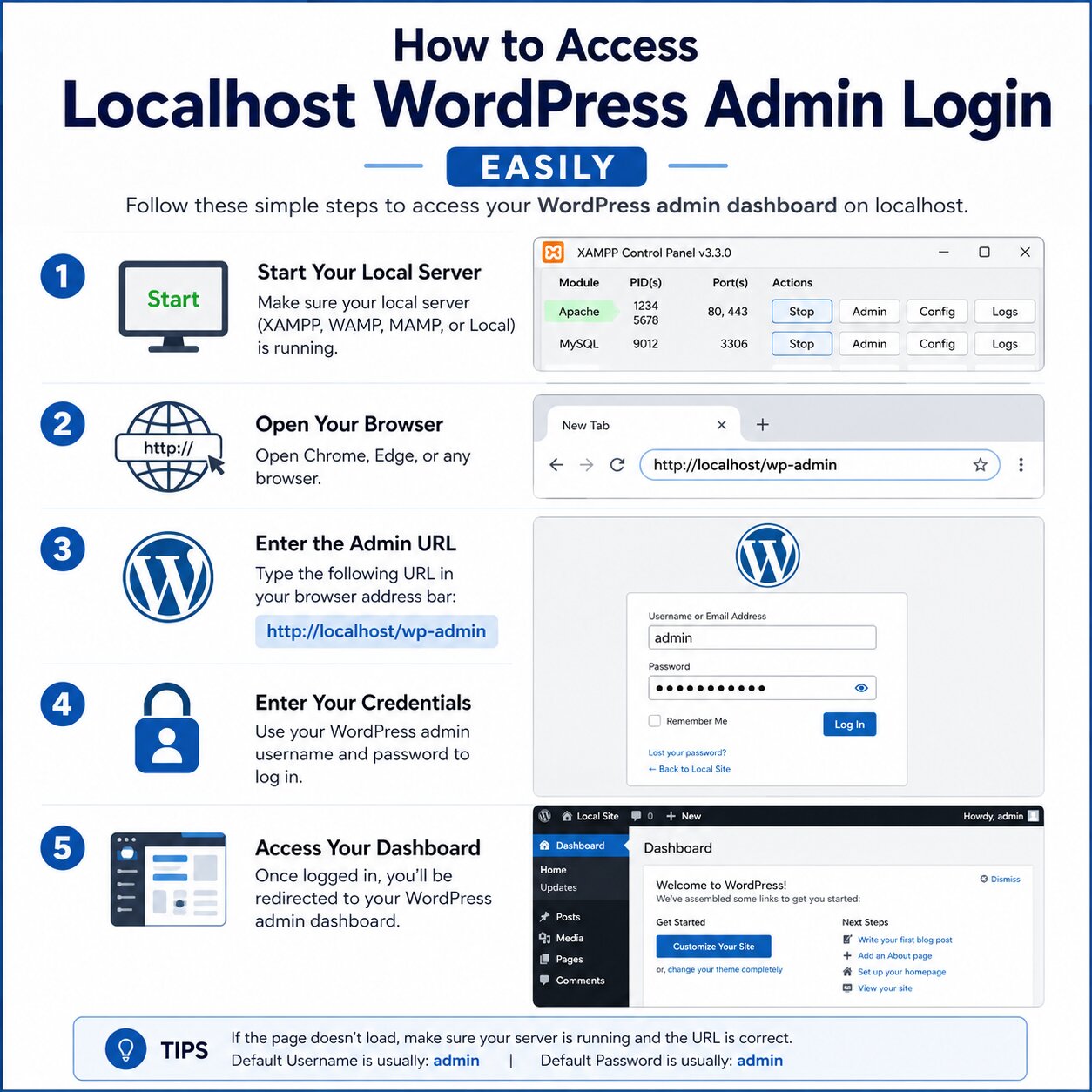
If you are building a WordPress website on your computer, you will often need access to the localhost WordPress admin login page. This admin area allows you to manage themes, plugins, posts, pages, and website settings before moving the site online.
Many beginners face confusion when trying to log in to WordPress on localhost. Sometimes the login page does not open, or users forget the correct URL. Fortunately, accessing the WordPress dashboard on a local server is simple once you understand the process.
In this guide, you will learn how to access localhost WordPress admin login, common issues, and the best ways to fix them.
What Is Localhost in WordPress?
Localhost is a local server environment installed on your computer. It allows you to create and test WordPress websites offline without purchasing hosting.
Developers and beginners commonly use tools like:
- XAMPP
- WAMP
- LocalWP
- MAMP
These applications create a local server where WordPress can run smoothly on your PC.
What Is Localhost WordPress Admin Login?
The localhost WordPress admin login page is the dashboard area used to control your local WordPress website.
From the admin panel, you can:
- Install themes
- Upload plugins
- Create blog posts
- Customize website design
- Manage users
- Configure settings
It works exactly like a live WordPress website.
How to Access Localhost WordPress Admin Login
Logging into WordPress on localhost is very easy.
Standard Login URL
Use this format in your browser:
http://localhost/yourwebsite/wp-admin
Or:
http://localhost/yourwebsite/wp-login.php
Replace yourwebsite with your actual project folder name.
Example:
http://localhost/myblog/wp-admin
Once opened, enter your:
- Username
- Password
Then click Log In.
Steps to Set Up Localhost WordPress Login
If you cannot access the login page, follow these steps carefully.
-
Install a Local Server
First, install server software on your computer.
Popular Options
- XAMPP for Windows
- WAMP for Windows
- MAMP for Mac
- LocalWP for beginners
These tools create Apache and MySQL services needed for WordPress.
-
Start Apache and MySQL
After installation:
- Open your server application
- Start:
- Apache
- MySQL
Without these services running, localhost will not work.
-
Install WordPress
Place WordPress files inside the local server folder.
For XAMPP:
Move your website folder to:
C:\xampp\htdocs
Then create a database using phpMyAdmin.
-
Open the Login Page
After installation, open:
http://localhost/yourwebsite/wp-admin
You should now see the WordPress login screen.
Common Localhost WordPress Admin Login Issues
Sometimes users cannot access the admin panel. Below are common reasons and solutions.
-
Localhost Not Working
If localhost does not open:
Possible causes:
- Apache server stopped
- Port conflicts
- Incorrect installation
Solution:
- Restart Apache
- Restart XAMPP or WAMP
- Check if Skype or other apps use port 80
-
Incorrect Login Credentials
Forgotten usernames or passwords are common.
Solutions:
- Reset password using phpMyAdmin
- Reinstall WordPress if necessary
- Check saved login information
-
White Screen Error
Sometimes the admin page becomes blank.
Causes:
- Plugin conflicts
- PHP memory issues
- Theme errors
Fixes:
- Disable plugins manually
- Switch to default theme
- Increase PHP memory limit
-
Database Connection Error
This happens when WordPress cannot connect to MySQL.
Check:
- Database name
- Username
- Password
- MySQL service status
You can verify these settings inside the wp-config.php file.
Tips for Managing Localhost WordPress Websites
Working on localhost becomes easier with proper management.
Best Practices
Keep Backups
Always create backups before making major changes.
Use Lightweight Plugins
Heavy plugins may slow your local server.
Update WordPress Regularly
Keep WordPress core, themes, and plugins updated.
Test Before Going Live
Localhost is perfect for testing website changes safely.
Benefits of Using Localhost WordPress
There are many advantages to building websites locally.
Main Benefits
- No hosting cost
- Fast website testing
- Safe environment for experiments
- Offline development access
- Better learning experience for beginners
Developers also use localhost to test plugins and themes before launching websites publicly.
Localhost WordPress Admin Login for Beginners
If you are new to WordPress, localhost is an excellent starting point.
It helps you:
- Learn WordPress safely
- Practice website design
- Test plugins without risks
- Build websites before publishing online
Once your site is complete, you can move it to live hosting.
Final Thoughts
Accessing the localhost WordPress admin login page is an important step for managing your local WordPress website. Whether you are using XAMPP, WAMP, or LocalWP, the login process is simple once your server is configured correctly.
Most login issues are related to server settings, incorrect URLs, or database problems. By following the steps in this guide, you can easily access your WordPress dashboard and manage your site without difficulties.
Localhost environments are ideal for beginners, developers, and businesses that want to test websites safely before going live. Read more: What Is IPTV