

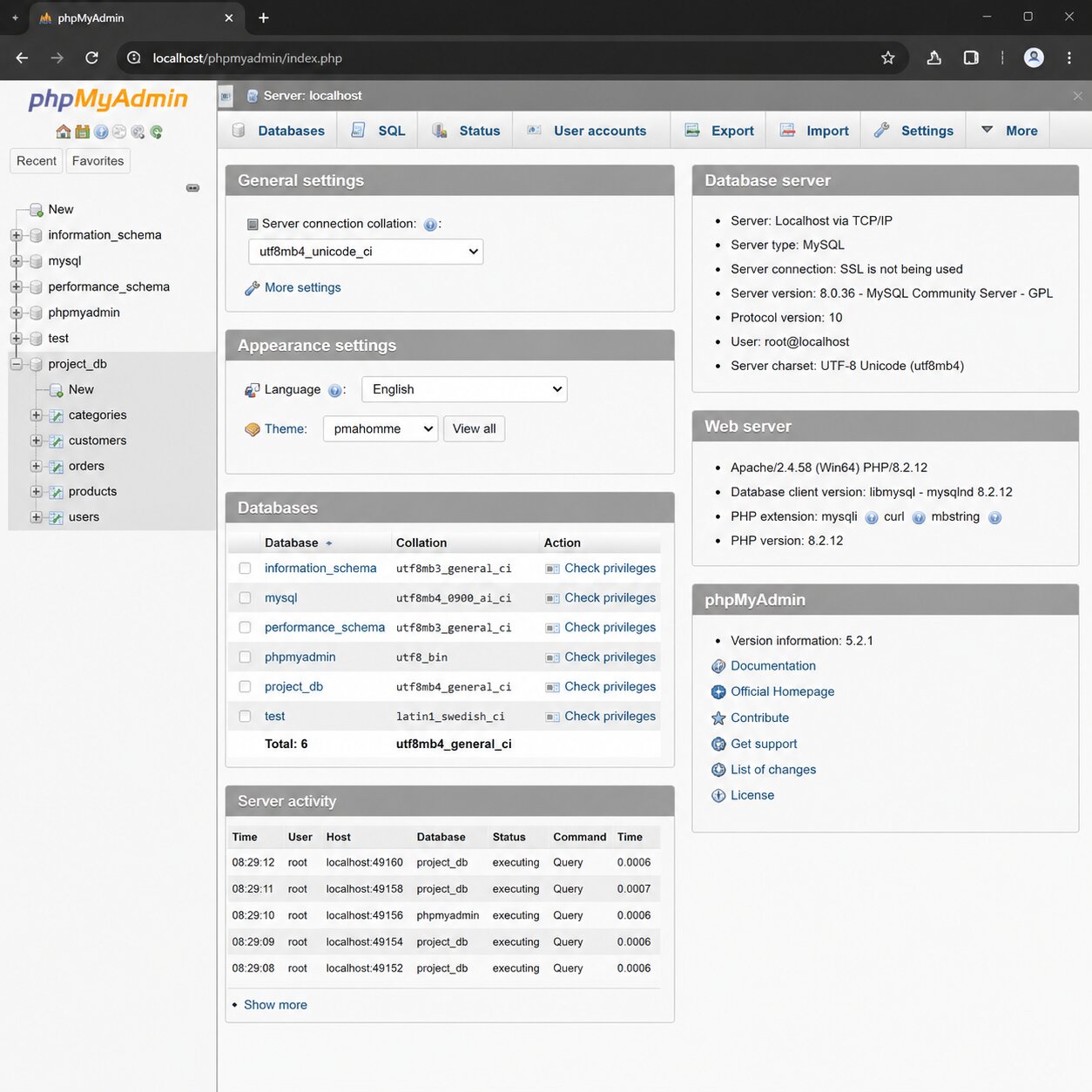
Local development tools are part of building and testing websites. Among the most commonly used tools to manage databases, phpMyAdmin, is a good choice. If you’re using a local server on your computer, then you should know how to access the localhost dashboard in phpMyAdmin.
This guide explains the basics of using MySQL to open, manage, and control your databases in clear and easy steps. Whether you are new to MySQL or are just getting started, this article will help you get started.
What is a Localhost Dashboard?
A localhost dashboard is basically a control panel that runs on your own computer. Instead of using a live server on the internet, everything stays locally.
It allows developers to:
- Test websites safely
- Manage databases offline
- Run PHP projects without hosting costs
- Experiment with code freely
In simple words, localhost is your personal testing ground.
What is phpMyAdmin?
phpMyAdmin is a web-based tool used to manage MySQL or MariaDB databases. It provides a user-friendly interface instead of writing complex SQL commands.
With phpMyAdmin, you can:
- Create databases
- Add or delete tables
- Import and export data
- Run SQL queries
- Manage user permissions
It is widely used because it simplifies database handling, especially for beginners.
How localhost Dashboard and phpMyAdmin Work Together
When you install a local server like XAMPP, WAMP, or Laragon, it includes both Apache (server) and MySQL (database system).
Once the server is running:
- localhost opens your local server dashboard
- phpMyAdmin connects to your database system
- Both tools work together to manage your project
So, when you type localhost/phpmyadmin in your browser, you are accessing your database control panel.
Step-by-Step: How to Access localhost Dashboard in phpMyAdmin
Here is a simple guide you can follow:
Step 1: Install Local Server Software
First, install a local server like:
- XAMPP
- WAMP
- MAMP
These tools include phpMyAdmin automatically.
Step 2: Start Apache and MySQL
Open your control panel and start:
- Apache server
- MySQL service
Without these, phpMyAdmin will not work.
Step 3: Open Browser
Now open any browser like Chrome or Firefox.
Step 4: Enter Localhost URL
Type the following in the address bar:
http://localhost/phpmyadmin
Press enter.
Step 5: Access Dashboard
You will now see the phpMyAdmin login or dashboard page.
From here, you can:
- Select databases
- Manage tables
- Import or export files
This is your main database control area.
How to Use localhost Dashboard Effectively
Once inside phpMyAdmin, you can manage everything related to your database.
Create a New Database
Click on “New” and enter a database name. Then click create.
Add Tables
Inside the database, you can add tables for storing data like users, products, or posts.
Import SQL Files
If you have a backup file, you can import it directly into phpMyAdmin.
Export Data
You can also download your database as an SQL file for backup.
Common Problems and Solutions
Sometimes users face issues while accessing phpMyAdmin. Here are common ones:
Problem 1: localhost not opening
- Make sure Apache is running
- Restart XAMPP or WAMP
Problem 2: phpMyAdmin not loading
- Check if MySQL is active
- Clear browser cache
Problem 3: Port conflict error
- Another app may be using port 80
- Change Apache port settings
Problem 4: Access denied error
- Wrong username or password
- Reset MySQL credentials if needed
Security Tips for Localhost
Even though localhost is not public, it is still important to stay safe.
- Do not expose localhost to the internet
- Use strong passwords if configured
- Keep software updated
- Avoid unnecessary plugins
Why Developers Use phpMyAdmin on Localhost
There are many reasons developers prefer it:
- Easy database control
- No internet required
- Fast testing environment
- Beginner-friendly interface
- Ideal for learning PHP and MySQL
It saves time and reduces complexity when building websites.
Best Practices for Beginners
If you are just starting out, follow these tips:
- Practice creating small databases
- Learn basic SQL queries
- Always keep backups
- Explore each feature slowly
- Avoid deleting unknown tables
This will help you build confidence in backend development.
Conclusion
Accessing the localhost dashboard in phpMyAdmin is an essential skill for anyone learning web development. It gives you full control over databases and helps you test projects in a safe environment.
With tools like XAMPP and phpMyAdmin, managing data becomes simple, fast, and beginner-friendly. Once you get comfortable, you will be able to handle databases like a pro.
And with proper guidance from Buy Web Hosting in Pakistan, you can take your development skills even further. Read more: How to Fix DNS_PROBE_FINISHED_NXDOMAIN Error on Android